
Two problems catch iPhone owners by surprise: running out of storage and losing everything when a phone breaks. Both are avoidable. This guide covers how to see what is using your space, how to free it up, and how to set up a backup that works without effort.
Use certified chargers and cables. If a battery is swollen, hot, or damaged, stop using it and contact the maker or a repair provider.
Check your storage
Open Settings, then General, then iPhone Storage. You will see a bar showing the categories using space, and a list of apps sorted by size. Photos and videos, messages, and apps are usually the biggest. iOS may also offer recommendations to save space.
Free up space
Photos and videos
- Delete duplicates and blurry shots. Review your library from time to time.
- Check Recently Deleted. Deleted items stay for a period, so empty it if you need space right away.
- Optimize iPhone Storage. With iCloud Photos on, the phone can keep smaller versions on the device and store full-resolution originals in iCloud.
- Lower video settings if you do not need 4K at high frame rates.
Apps
- Offload unused apps. iOS can remove an app but keep its data.
- Delete apps you do not use.
- Clear cache for apps that store large downloads, like streaming and podcast apps.
Messages
Large attachments pile up. Set messages to keep for a year, or review large attachments in iPhone Storage.
Downloads
Music, podcasts, and videos you have downloaded can be removed or limited.
Back up your iPhone
Backups protect you if your phone is lost, stolen, or broken.
iCloud backup
Open Settings, tap your name, then iCloud, then iCloud Backup, and turn it on. The phone backs up automatically when it is locked, connected to Wi-Fi, and plugged in. iCloud includes 5 GB free, and you can buy more storage. Photos can also sync separately with iCloud Photos.
Computer backup
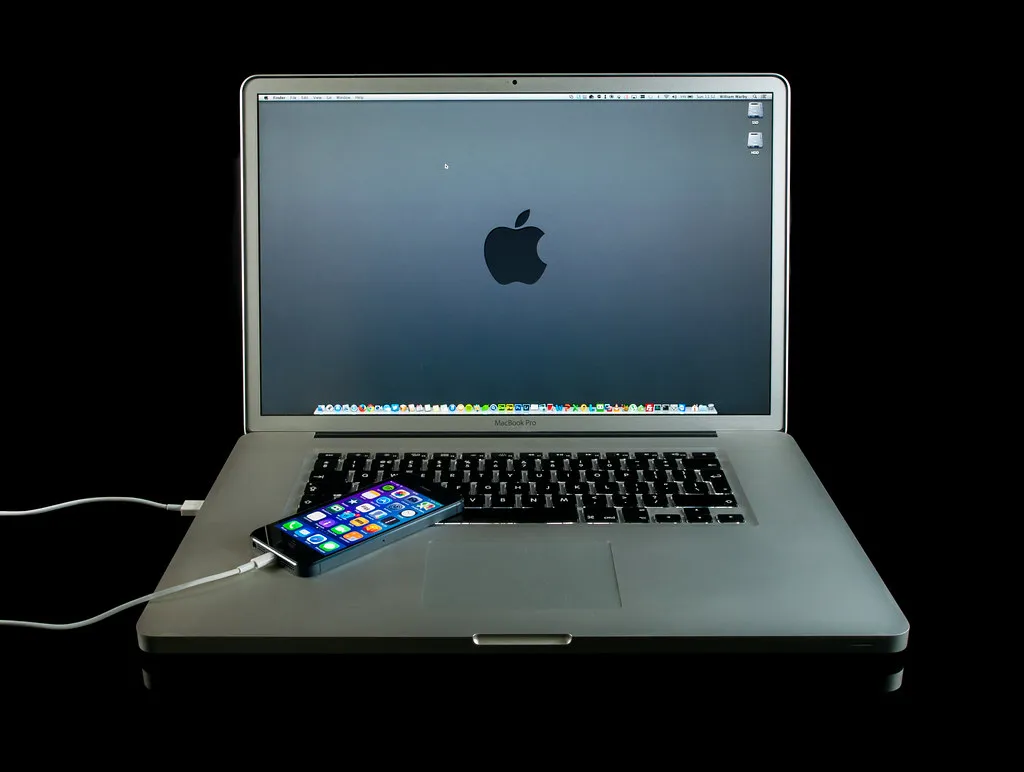
You can back up to a Mac or a Windows PC with a cable. This is useful if you do not want to pay for iCloud storage or you want a local copy. Consider encrypting the backup so health and password data are included.
Both
For important data, many people use both: iCloud for convenience, and a computer or external drive as a second copy.
Moving to a new phone
Backups make it easy to set up a new iPhone. Apple also offers a direct transfer from one phone to another. Keep the old phone until you confirm everything moved.
Cables and power
When backing up to a computer or transferring files, use a good USB-C or Lightning cable and keep your phone charged. See USB-C chargers and cables.
Protect your data
- Use a passcode and Face ID or Touch ID.
- Turn on Find My iPhone.
- Use two-factor authentication on your Apple Account.
- Keep iOS updated.
What a backup does not cover
Some data is already stored in iCloud or other cloud services and is not part of the device backup. Check Apple’s documentation about what is included.
Storage and photography
If you take lots of photos and videos, check your storage often. See iPhone photography accessories.
Frequently asked questions
What happens if I do not back up? If a phone is lost, stolen, or damaged, anything that was only on the phone may be gone. Backups are the safety net. Apple’s support site explains iCloud backups and backing up to a computer.
Do I need to pay for more storage? Only if your needs outgrow the free amount. Check what is taking up space before paying. Photos and videos are often the largest part.
How can I check that a backup worked? Look at the date of the last backup in Settings, and keep your phone on Wi-Fi and power overnight, when many backups run. Check Apple’s current instructions for your iOS version.
The takeaway
Check storage, trim what you do not need, and turn on iCloud Backup or back up to a computer. See our researched top-10 list for charging gear, and read iPhone battery health tips.